 Networker's apps
Checker is an automation application. Unlike Ansible, that was created by Unix admins for Unix admins,
Checker was written by a networker for networkers. Networker's projects are different, we rarely have a massive
repeating task to run that Ansible was created for. Our projects are always unique and precise. Ansible's prep time
just isn't justified for a one-off run. Any massive work in networking is very likely a research, not a change, unless
it's something so low risk like base configuration on new devices or as trivial as lldp enable.
Most network projects have no tolerance for errors. When Unix server misses its next patch the world doesn't collapse.
If a network configuration turns out wrong all those Unix server go down!
Checker is a single, self sufficient executable, no dlls, no installation.
With Checker you don't need to edit a dozen of configuration files in 20 directories and then check every corner of 10 square miles of your configuration landscape. In Checker everything is on a single form, like in a cockpit of a jet plane - every control in front of you and immediately accessible. Ansible, on the other hand, is more like a cruise ship, that doesn't yield itself well for a precise and sophisticated mission of a fighter jet.
You don't need to learn Yaml and Python, create roles, playbooks and handlers. You don't need to know anything beyond what you know already as network engineer to become an automation ninja. After a 5 minute read you are ready to cut all that boring work out of your day.
On launch Checker presents several configuration and run controls:
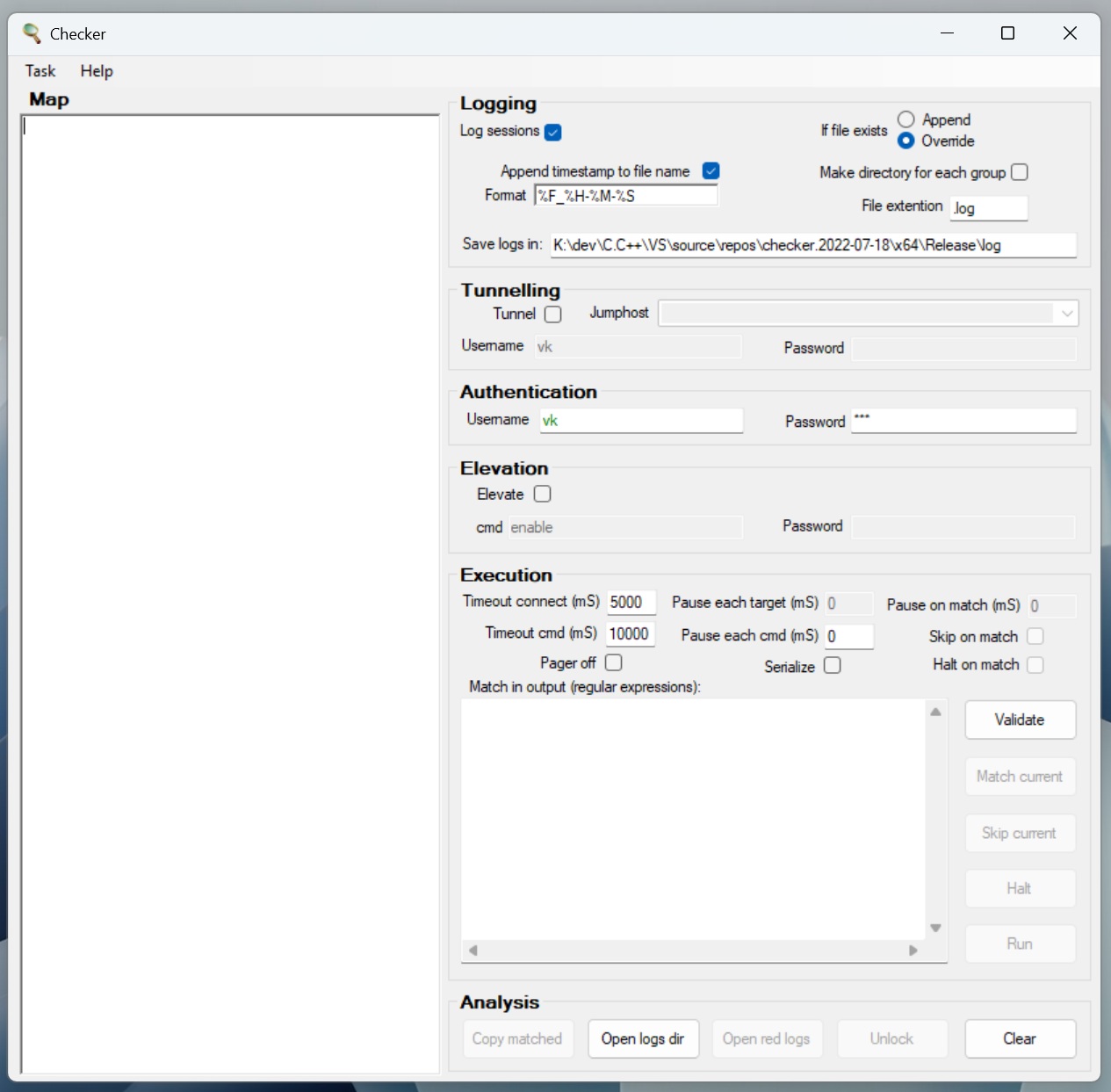
Most of them are obvious, others need comments. To help a user navigate these controls, their availability
(enabled/disabled) is controlled by many factors. In most general case - a control is enabled ONLY when it's
use is possible, safe and makes sense. For example if your task didn't match any regex "Copy matched" and
"Open red logs" will stay disabled. Clicking "Run" during a run doesn't make sense, so it's disabled.
Editing "Map" during a run is unsafe, so it's locked.
“Format” of a timestamp will blink at you with colors as you edit it. Green = good, red = bad.
Not sure what those cryptic variables are and how to make them do what you need? Edit it to generate some red
and click on "Validate".
“Map” is a textbox that defines what and where to execute. It needs at least one target device
(hostname or IP) and at least one command. You can combine multiple targets and many commands in the same
execution group - two lists (one item per line) separated by a delimiter. Execution groups must be separated
from each other with a delimiter as well. Any character that fits this
regex: \W can serve as a delimiter. Another way to define it - any character DNS-illegal. Any special character
or just an empty line - are good candidates for a delimiter.
“Match in output (regular expression)” is a textbox where you'd enter what you want to find
in output - regular expressions, one per line. Important thing to keep in mind is that every command's output
will be searched for every regex defined here and flagged or otherwise acted upon if a match found.
If you never worked with regular expressions my suggestion is - learn, at least basics. It's a powerful tool
for working with text. Most advanced text editors have regex as a built in feature. There are plenty of regex
tutorials on the Internet and in print, ranging in size from a single paragraph to a thick book. Pick what
fits your need and interest. Checker uses the C++ std::regex library that is - a slightly modified version
of the ECMAScript (JavaScript) regular expression flavor. There is only one Checker specific operator: case
insensitive. Append a regex with this sequence: ~~:icase if you want it to match both
UPPER and lower case.
      apple~~:icase will match "apple", "Apple" and "aPplE"


      apple will match only "apple"
“Timeout connect (mS)” will be effective only when a target TRIES to connect but fails for some reason, like elements of crypto proposal mismatch - diffie-hellman group, hash or cipher. Everything else (like DNS unresolvable or socket failure) is controlled by Windows OS and usually times out after ~7 seconds.
“Pause each target (mS)” and “Pause each cmd (mS)” insert a configured pause BEFORE new target or new command respectively.
“Skip on match” will skip all remaining commands for a given target after a regex match. A use example would be a case where you want to configure something on several targets but only on those that don't have it already or match some other criteria. Send a show command that verifies your condition first, follow with configuration commands. Construct a regex to match the output of your show command and check off “Skip on match”. Only targets producing show output that doesn't match the regex will receive the configuration.
“Halt on match” will do what its name implies - halt entire task on first match. For obvious reasons available only in serial mode.
Modes. There are 2 to chose from: serial and parallel. First one executes commands on targets exactly in the order they were entered in "Map" - from top to bottom.
Parallel launches an execution thread for every target in "Map". Former mode gives you more real time reporting and control, the later - speed of execution.
"Validate" button performs a few optional checks before you hit "Run": timestamp format, log directory exists and is readable and writable, all applicable username and password fields are not blank, jumphost listens on 22/tcp (if tunneling is enabled), "Map" is not blank and conforms to minimum requirements.
"Pager off" sends a platform specific command to disable paging before any command from "Map" is executed. Checker autosenses IOS, NXOS, EOS and JunOS.
"Match current" button mimics regex match without one. If you want to "mark" a target Checker is working on at the moment for future analysis - hit that button.
"Skip current" button mimics "Skip on match" condition - all remaining commands will be skept for the current target.
"Halt" button will do what its name says - stop execution of the entire task, regardless of mode or any other settings.
"Copy matched" button copies to Windows clipboard hostnames/IPs of targets who's output matched a regex.
"Open red logs" opens all session logs with a regex match.
"Unlock" removes all final status color codes from "Map", enables all locked (during run) controls making them available for configuration and the next run.
"Clear" button clears all settings.
"Task" menu and task files. Configuration can be created manually or loaded from a task file. New configuration can be saved in a task file. Modified task file can be saved or saved as a new file.
An existing task file can be loaded via "Task" menu or by simply dragging and dropping the file on the form.
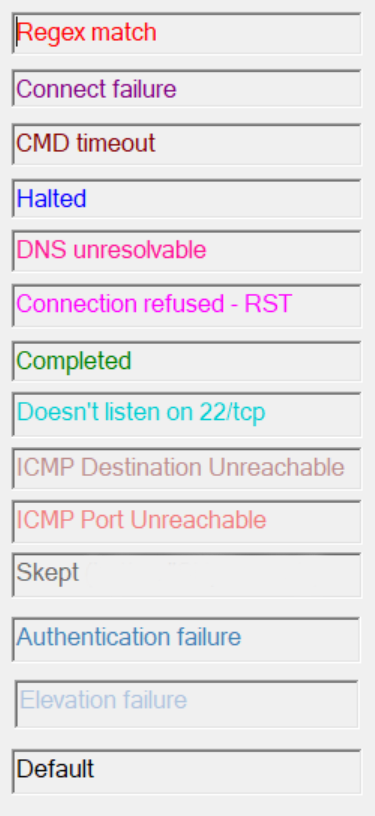
Final status color codes. If this image is too small on your screen open it in a new tab - it has plenty of resolution to zoom into. I am just not much of a web developer.
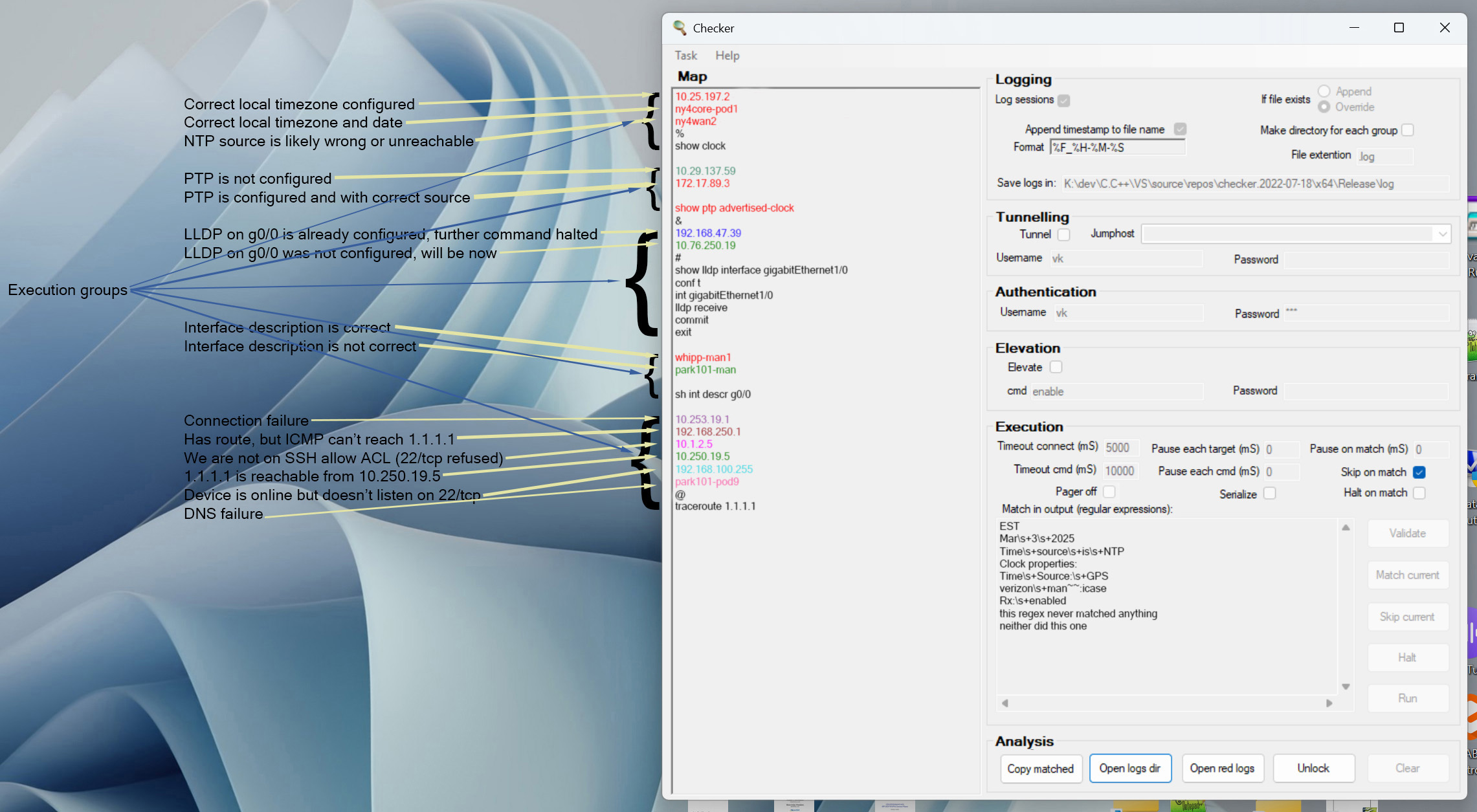
Complete status color codes list:
License
Checker is licensed under the WebX LLC Software License, distributed in LICENSE.txt with the download. The license permits
free use, including commercial use by individuals, consultants, managed service providers and any organizations of any size.
It prohibits redistribution, resale, and inclusion in products or services sold to third parties.
By downloading or using Checker, you agree to the terms of the license.
Full license: LICENSE.txt